Essa é bem simples, é sobre a ferramenta de ETL AWS Glue. Se você está migrando para serviços na nuvem, essa é uma boa escolha, para criar e automatizar seus processos de ETL.
Lembrando que ETL é Extração(Extract), Transformação(Transform) e Carga(Load), Simplificando, um processo de ETL é quando você consome dados de uma ou muitas origens, como por exemplo arquivos XLSX, CSV, Bancos de Dados… Você precisa transformar esses dados e carregar em um destino, como um banco de dados, por exemplo.
Em poucos minutos você pode fazer sua automatização de forma bem simples usando AWS Glue Studio.
Me conta aqui se você já conhecia essa ferramenta…
Espero ter ajudado com essa simples contribuição. Desejo a todos uma ótima semana, um grande abraço e até o próximo post pessoal!
Essa dica é bem simples, e ajuda muito quando queremos substituir textos de uma consulta T-SQL.
Para isso, clique em qualquer lugar da sessão aberta e use as teclas de atalho “CTRL + H” dentro Microsoft SQL Server Management Studio(SSMS), dessa forma será exibido a caixa de diálogo para você escrever a palavra que será substituída na consulta.
No exemplo a seguir, foram localizados 2 palavras iguais, mas veja que apenas uma foi aplicado a Substituição.
Bacana né?
Espero ter ajudado com essa simples contribuição. Desejo a todos uma ótima semana, um grande abraço e até o próximo post pessoal!
Felippe Santos
CTRL + H at SSMS
Hi Guys, how are you doing?
I hope you are doing well! Here I come to share one more tip with you. This tip is really simple and really helps when we want to replace texts of a T-SQL consult. For that click on any space in blank of the open session and use the hotkeys “CTRL + H” into Microsoft SQL Server Management Studio(SSMS), this way it will be showed a dialog box for you to write a word that will be replaced at the consult. In the following example, it was found two equal words, but it was aplied a replacement to one of them.
That’s cool, isn’t it?
I hope I helped you with this simple contribution. I wish you all have a great week, warm hugs and I´ll see you on our next post guys.
Essa dica é bem simples, e ajuda muito quando queremos localizar uma palavra ou parte dela em uma consulta T-SQL com muitas linhas.
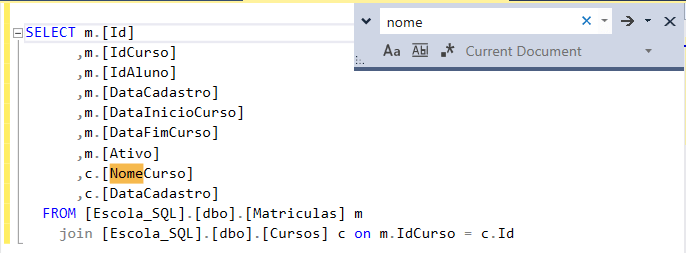
Para isso, clique em qualquer espaço em branco da sessão aberta e use as teclas de atalho “CTRL + F” dentro Microsoft SQL Server Management Studio(SSMS), dessa forma será pesquisado o local onde está a palavra digitada na consulta.
Após digite o texto que deseja pesquisar, veja o exemplo a seguir:
Bacana né?
Espero ter ajudado com essa simples contribuição. Desejo a todos uma ótima semana, um grande abraço e até o próximo post pessoal!
Felippe Santos
CTRL + F at SSMS
Hi Guys, how are you doing?
I hope you are doing well! Here I come to share one more tip with you.
This tip is really simple and it helps much when we want to search a word or a part of it in a T-SQL consult with many lines. For that, click on any space in white of the open session and use the hotkeys “CTRL + F” into Microsoft SQL Server Management Studio(SSMS), this way it will be serching the place where it is the typed word at the consult.
After, input text that you wish to search.
That’s cool, isn’t it?
I hope I helped you with this simple contribution. I wish you all have a great week, warm hugs and I´ll see you on our next post guys.
Essa dica é bem simples, e ajuda muito quando queremos comentar ou remover comentário de um texto em linha ou um grupo de linhas de uma consulta T-SQL.
Para isso, selecione uma linha ou um grupo de linhas e use as teclas de atalho “CTRL + K + C” dentro Microsoft SQL Server Management Studio(SSMS), dessa forma será aplicado o comentário sobre o grupo de linhas da consulta.
Para exibir novamente o texto sem comentário, basta selecionar a linha ou o conjunto de linhas e usar as teclas de atalho “CTRL + K + U“.
Bacana né?
Espero ter ajudado com essa simples contribuição. Desejo a todos uma ótima semana, um grande abraço e até o próximo post pessoal!
Felippe Santos
Ctrl + K + C and Ctrl + K + U in SSMS
Hi Guys, how are you doing? I hope you are doing well! Here I come to share one more tip with you.
This tip is really simple, and it helps much when we want to comment or uncomment a line or a group of line in a T-SQL consult.
For this, select a line or group line and use the hotkeys “CTRL + K + C” into Microsoft SQL Server Management Studio(SSMS), this way, the comment will be applyied over the group lines in a consult.
To show the text without the comment again, just select the line or group line and use the hotkeys “CTRL + K + U“.
That’s cool, isn’t it?
I hope I helped you with this simple contribution. I wish you all have a great week, warm hugs and I´ll see you on our next post guys. Santos, Felippe
Essa dica é bem simples e ajuda muito quando queremos saber os tipos de dados das colunas de uma tabela, ou até mesmo quando essa tabela foi criada no banco de dados SQL Server, usando as teclas “ALT+F1” você aciona o SP_HELP.
Para isso, selecione a tabela que deseja visualizar as propriedades e use as teclas de atalho “ALT + F1” dentro Microsoft SQL Server Management Studio(SSMS), dessa forma será exibido no painel de resultado os detalhes sobre a tabela.
Bacana né?
Espero ter ajudado com essa simples contribuição. Desejo a todos uma ótima semana, um grande abraço e até o próximo post pessoal!
Felippe Santos
ALT + F1 at SSMS
Hi Guys, how are you doing? I hope you are doing well! Here I come to share on more tip with you.
This tip is really simple, but it helps a lot when we want to know the kind of data at the columns of a table, or even though when that table was created at SQL Server database.
For that, select a table you want to show the information and use the hotkeys “ALT + F1” into Microsoft SQL Server Management Studio(SSMS), this way, it will be showing at the panel of result the details about the table.
That’s cool, isn’t it?
I hope I helped you with this simple contribution.
I wish you all have a great week, warm hugs and I´ll see you on our next post guys.
Essa dica é bem simples, mas ajuda muito quando queremos mostrar ou ocultar um resultado de uma consulta T-SQL, usando as teclas “CTRL+R“.
Após executar uma consulta o painel de resultado é exibido, conforme figura abaixo:
Agora, vamos ocultar esse painel, para isso, use as teclas de atalho “CTRL+R” dentro Microsoft SQL Server Management Studio(SSMS), e dessa forma será ocultado o painel de resultados, ficando apenas a sessão da consulta em aberto.
Para exibir novamente, basta usar as teclas de atalho “CTRL+R“.
Bacana né?
Espero ter ajudado com essa simples contribuição. Desejo a todos uma ótima semana, um grande abraço e até o próximo post pessoal!
Felippe Santos
Ctrl + R at SSMS
Hi Guys, how are you doing? I hope you are doing well! Here I come to share some tips with you.
This tip is really simple, but it helps much when we want to show or hide a result of a T-SQL consult.
For this, use the hotkeys “CTRL + R” into Microsoft SQL Server Management Studio(SSMS), this way, it will be hiding the results screen, showing only the consult session.
To show it again, you can use the hotkeys “CTRL + R“.
That’s cool, isn’t it?
I hope I helped you with this simple contribution. I wish you all have a great week, warm hugs and I´ll see you on our next post guys. Santos, Felippe
Quero trazer aqui dois comandos muito utilizados para listar amostragem de dados de tabelas, são eles TOPe LIMIT.
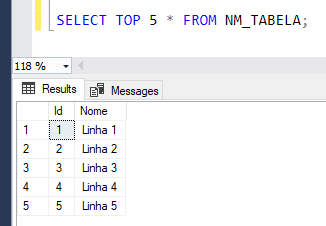
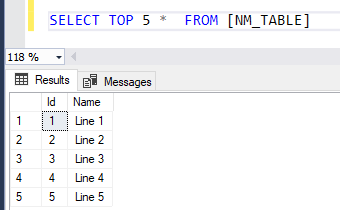
No SQL Server é muito comum usar o comando TOP para determinar uma quantidade de registros que será retornado em uma consulta T-SQL.
No MySQL essa clausula não funciona, porém você pode usar LIMIT, esse comando, também lista uma quantidade de registros, mas ele é usado ao final de cada consulta.
Bacana né?
Espero ter ajudado com essa simples contribuição. Desejo a todos uma ótima semana, um grande abraço e até o próximo post pessoal!
Felippe Santos
SQL Server TOP and MySQL LIMIT
Hi Guys, how are you doing? I hope you are doing well! And let’s take a look at one more tip.
Espero que sim, faz um tempo que não passo por aqui e peço desculpas, pois a ideia é sempre que possível compartilhar um pouco da experiência profissional, casos do dia a dia e indicar eventos, pois sabemos que toda troca de conhecimento é super válida.
Ano passado (2023) voltamos a ter mais eventos presenciais, isso foi ótimo, esse ano teremos muito mais e vou compartilhando aqui com vocês os locais e datas.
Que tal dar uma passada na cidade de Joinville e participar de um super evento que é o SQL Saturday Joinville 2024?
Evento que será realizado em 06 Abril e lembrando que você pode submeter sua palestra até dia 31/01/2024, ou seja você tem a chance de compartilhar seu conhecimento com a comunidade de Dados.
Desejo a todos uma ótima semana, que 2024 seja o ano de muita saúde e muito aprendizado, um grande abraço e até o próximo post pessoal!
Felippe Santos
Shall we get started with Events and Tips??? Cheers for 2024!!!
Hi Guys, how are you? I hope you are doing well!
It´s been a while that I do not come around and I am sorry for this, my idea is to always be able to share a little about my professional experience, daily basis cases and recommend events, we know that sharing knowledge is always super welcomed.
Last year(2023) we started having more face to face events again, this is great, this year there will be many more events and I will share here with you places and dates. How about passing by Joinville city and take part in a great event that is the SQL Saturday Joinville 2024?
The event will be on april 06th and make sure to submit your session until january the 31st, this is an opportunity for you to share your knowledge with the data community.