Amazon Athena

Fala pessoal, tudo bem com vocês?

Espero que sim e vamos de mais uma dica.

O Amazon Athena é um serviço de consultas interativas que facilita a analise de dados diretamente no Amazon Simple Storage Service o famoso Amazon S3, usando SQL.
Você pode executar consultas ad-hoc e obter resultados em segundos, para isso basta indicar a fonte de dados, escrever sua consulta e analisar o resultado.

Veja como a interface é bem simples.

Em resumo, o Amazon Athena é uma ótima opção para explorar e analisar grandes volumes de dados de maneira eficiente e flexível.

Bacana né?

Espero ter ajudado com essa simples contribuição.
Desejo a todos um excelente dia, um grande abraço e até o próximo post pessoal!

Felippe Santos

Inteligência Artificial

Fala pessoal, tudo bem com vocês?

Espero que sim e vamos de mais uma dica.

Nesse último sábado(13/04/2024) tive a oportunidade de participar de um treinamento gratuito realizado pela KA Solution, sobre Conceitos de Inteligência Artificial no Azure.
Foi muito bom, meu muito obrigado a turma da KA Solution.

Com base nesse treinamento, pude aprender como usar algumas ferramentas disponíveis no Azure AI Services e também ganhei um certificado de participação no treinamento.

Talvez você não saiba, mas esse treinamento está disponível no site da
Microsoft, clique aqui para ir direto.

Bacana né?

Espero ter ajudado com essa simples contribuição.
Desejo a todos uma ótima semana, um grande abraço e até o próximo post pessoal!

Felippe Santos

AWS GLUE

Fala pessoal, tudo bem com vocês?

Espero que sim e vamos de mais uma dica.

Essa é bem simples, é sobre a ferramenta de ETL AWS Glue.
Se você está migrando para serviços na nuvem, essa é uma boa escolha, para criar e automatizar seus processos de ETL.

Lembrando que ETL é Extração(Extract), Transformação(Transform) e Carga(Load),
Simplificando, um processo de ETL é quando você consome dados de uma ou muitas origens, como por exemplo arquivos XLSX, CSV, Bancos de Dados… Você precisa transformar esses dados e carregar em um destino, como um banco de dados, por exemplo.

Em poucos minutos você pode fazer sua automatização de forma bem simples usando AWS Glue Studio.

Me conta aqui se você já conhecia essa ferramenta…

Espero ter ajudado com essa simples contribuição.
Desejo a todos uma ótima semana, um grande abraço e até o próximo post pessoal!

Felippe Santos

ALT + SHIFT + SETA PARA BAIXO ou ALT + SHIFT + SETA PARA CIMA no SSMS

Fala pessoal, tudo bem com vocês?

Espero que sim e vamos de mais dicas.

Essa dica é bem simples, e ajuda muito quando queremos adicionar vírgula, espaço, ou até mesmo textos para mais de uma linha de forma única e rápida nas consultas T-SQL.

Para isso, clique ao lado de onde deseja escrever e aperte as teclas de atalho “ALT+SHIFT+SETA PARA BAIXO OU PARA CIMA“, para começar a marcar onde pretende replicar seu texto.

Veja o exemplo a seguir, um simples SELECT sem as vírgulas(,) e logo após usando as teclas de atalho “ALT+SHIFT+SETA PARA BAIXO OU PARA CIMA” para aplicar as vírgulas(,) para todas as linhas.

Usando as teclas de atalho “ALT+SHIFT+SETA PARA BAIXO OU PARA CIMA“, veja que o cursor ficou selecionado para todas as linhas e logo foi aplicado a vírgula(,);

Bacana né?

Espero ter ajudado com essa simples contribuição.
Desejo a todos uma ótima semana, um grande abraço e até o próximo post pessoal!

Felippe Santos

ALT + SHIFT + DOWN ARROW or ALT + SHIFT + UP ARROW at SSMS

Hi Guys, how are you doing?

I hope you are doing well! Here I come to share one more tip with you.

This tip is really simple and really helps when we want to add comma, space or even same texts in more than one line in a simple and fast way.
For that, click on the side where you wish to write and click on hotkeys “ALT + SHIFT + DOWN ARROW or ALT + SHIFT + UP ARROW” to begin to select where you
intend to duplicate your text.


See the following example, a simple command without the commas and soon after using the hotkeys “ALT + SHIFT + DOWN ARROW or ALT + SHIFT + UP ARROW
to apply the comma to all lines.

That’s cool, isn’t it?

I hope I helped you with this simple contribution.
I wish you all have a great week, warm hugs and I´ll see you on our next post guys.

Santos, Felippe

CTRL + H no SSMS

Fala pessoal, tudo bem com vocês?

Espero que sim e vamos de mais dicas.

Essa dica é bem simples, e ajuda muito quando queremos substituir textos de uma consulta T-SQL.

Para isso, clique em qualquer lugar da sessão aberta e use as teclas de atalho “CTRL + H” dentro Microsoft SQL Server Management Studio(SSMS), dessa forma será exibido a caixa de diálogo para você escrever a palavra que será substituída na consulta.

No exemplo a seguir, foram localizados 2 palavras iguais, mas veja que apenas uma foi aplicado a Substituição.

Bacana né?

Espero ter ajudado com essa simples contribuição.
Desejo a todos uma ótima semana, um grande abraço e até o próximo post pessoal!

Felippe Santos

CTRL + H at SSMS

Hi Guys, how are you doing?

I hope you are doing well! Here I come to share one more tip with you.
This tip is really simple and really helps when we want to replace texts of a T-SQL consult.
For that click on any space in blank of the open session and use the hotkeys “CTRL + H” into Microsoft SQL Server Management Studio(SSMS),
this way it will be showed a dialog box for you to write a word that will be replaced at the consult.
In the following example, it was found two equal words, but it was aplied a replacement to one of them.

That’s cool, isn’t it?

I hope I helped you with this simple contribution.
I wish you all have a great week, warm hugs and I´ll see you on our next post guys.

Santos, Felippe

CTRL + F no SSMS

Fala pessoal, tudo bem com vocês?

Espero que sim e vamos de mais dicas.

Essa dica é bem simples, e ajuda muito quando queremos localizar uma palavra ou parte dela em uma consulta T-SQL com muitas linhas.

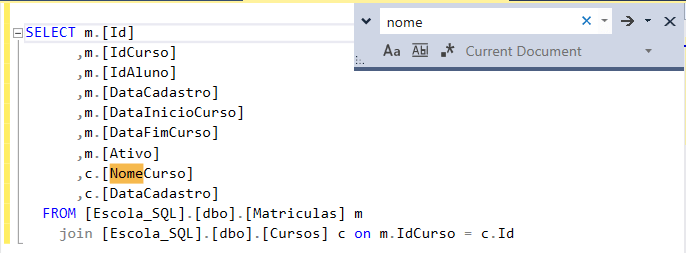
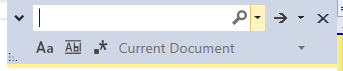
Para isso, clique em qualquer espaço em branco da sessão aberta e use as teclas de atalho “CTRL + F” dentro Microsoft SQL Server Management Studio(SSMS), dessa forma será pesquisado o local onde está a palavra digitada na consulta.

Após digite o texto que deseja pesquisar, veja o exemplo a seguir:

Bacana né?

Espero ter ajudado com essa simples contribuição.
Desejo a todos uma ótima semana, um grande abraço e até o próximo post pessoal!

Felippe Santos

CTRL + F at SSMS

Hi Guys, how are you doing?

I hope you are doing well! Here I come to share one more tip with you.

This tip is really simple and it helps much when we want to search a word or a part of it in a T-SQL consult with many lines.
For that, click on any space in white of the open session and use the hotkeys “CTRL + F” into Microsoft SQL Server Management Studio(SSMS), this way it will be serching the place where it is the typed word at the consult.

After, input text that you wish to search.

That’s cool, isn’t it?

I hope I helped you with this simple contribution.
I wish you all have a great week, warm hugs and I´ll see you on our next post guys.

Santos, Felippe

CTRL + K + C e CTRL + K + U no SSMS

Fala pessoal, tudo bem com vocês?

Espero que sim e vamos de mais dicas.

Essa dica é bem simples, e ajuda muito quando queremos comentar ou remover comentário de um texto em linha ou um grupo de linhas de uma consulta T-SQL.

Para isso, selecione uma linha ou um grupo de linhas e use as teclas de
atalho “CTRL + K + C” dentro Microsoft SQL Server Management Studio(SSMS),
dessa forma será aplicado o comentário sobre o grupo de linhas da consulta.

Para exibir novamente o texto sem comentário, basta selecionar a linha ou o conjunto de linhas e usar as teclas de atalho “CTRL + K + U“.

Bacana né?

Espero ter ajudado com essa simples contribuição.
Desejo a todos uma ótima semana, um grande abraço e até o próximo post pessoal!

Felippe Santos

Ctrl + K + C and Ctrl + K + U in SSMS

Hi Guys, how are you doing?
I hope you are doing well! Here I come to share one more tip with you.

This tip is really simple, and it helps much when we want to comment or uncomment a line or a group of line in a T-SQL consult.

For this, select a line or group line and use the hotkeys “CTRL + K + C” into Microsoft SQL Server Management Studio(SSMS),
this way, the comment will be applyied over the group lines in a consult.

To show the text without the comment again, just select the line or group line and use the hotkeys “CTRL + K + U“.

That’s cool, isn’t it?

I hope I helped you with this simple contribution.
I wish you all have a great week, warm hugs and I´ll see you on our next post guys.
Santos, Felippe

ALT + F1 no SSMS

Fala pessoal, tudo bem com vocês?

Espero que sim e vamos de mais dicas.

Essa dica é bem simples e ajuda muito quando queremos saber os tipos de dados das colunas de uma tabela, ou até mesmo quando essa tabela foi criada no banco de dados SQL Server, usando as teclas “ALT+F1” você aciona o SP_HELP.

Para isso, selecione a tabela que deseja visualizar as propriedades e use as teclas de atalho “ALT + F1” dentro Microsoft SQL Server Management Studio(SSMS), dessa forma será exibido no painel de resultado os detalhes sobre a tabela.

Bacana né?

Espero ter ajudado com essa simples contribuição.
Desejo a todos uma ótima semana, um grande abraço e até o próximo post pessoal!

Felippe Santos

ALT + F1 at SSMS

Hi Guys, how are you doing?
I hope you are doing well! Here I come to share on more tip with you.

This tip is really simple, but it helps a lot when we want to know the kind of data at the columns of a table, or even though when that table was created at SQL Server database.

For that, select a table you want to show the information and use the hotkeys “ALT + F1” into Microsoft SQL Server Management Studio(SSMS), this way, it will be showing at the panel of result the details about the table.

That’s cool, isn’t it?

I hope I helped you with this simple contribution.

I wish you all have a great week, warm hugs and I´ll see you on our next post guys.

Santos, Felippe

CTRL+R no SSMS

Fala pessoal, tudo bem com vocês?

Espero que sim e vamos de mais dicas.

Essa dica é bem simples, mas ajuda muito quando queremos mostrar ou ocultar um resultado de uma consulta T-SQL, usando as teclas “CTRL+R“.

Após executar uma consulta o painel de resultado é exibido, conforme figura abaixo:

Agora, vamos ocultar esse painel, para isso, use as teclas de atalho “CTRL+R” dentro Microsoft SQL Server Management Studio(SSMS), e dessa forma será ocultado o painel de resultados, ficando apenas a sessão da consulta em aberto.

Para exibir novamente, basta usar as teclas de atalho “CTRL+R“.

Bacana né?

Espero ter ajudado com essa simples contribuição.
Desejo a todos uma ótima semana, um grande abraço e até o próximo post pessoal!

Felippe Santos

Ctrl + R at SSMS

Hi Guys, how are you doing?
I hope you are doing well! Here I come to share some tips with you.

This tip is really simple, but it helps much when we want to show or hide a result of a T-SQL consult.

For this, use the hotkeys “CTRL + R” into Microsoft SQL Server Management Studio(SSMS), this way, it will be hiding the results screen,
showing only the consult session.

To show it again, you can use the hotkeys “CTRL + R“.

That’s cool, isn’t it?

I hope I helped you with this simple contribution.
I wish you all have a great week, warm hugs and I´ll see you on our next post guys.
Santos, Felippe

TOP SQL Server e LIMIT MySQL

Fala pessoal, tudo bem com vocês?

Espero que sim e vamos de mais dicas.

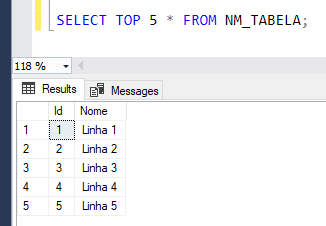
Quero trazer aqui dois comandos muito utilizados para listar amostragem de dados de tabelas, são eles TOP e LIMIT.

No SQL Server é muito comum usar o comando TOP para determinar uma quantidade de registros que será retornado em uma consulta T-SQL.


No MySQL essa clausula não funciona, porém você pode usar LIMIT, esse comando, também lista uma quantidade de registros, mas ele é usado ao final de cada consulta.

Bacana né?

Espero ter ajudado com essa simples contribuição.
Desejo a todos uma ótima semana, um grande abraço e até o próximo post pessoal!

Felippe Santos
SQL Server TOP and MySQL LIMIT

Hi Guys, how are you doing?
I hope you are doing well! And let’s take a look at one more tip.

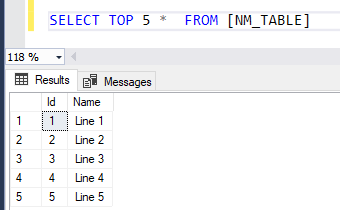
I want to take about the commands TOP and Limit.

In the SQL Server is very common to use the comand TOP to list a quantity of registers to view a small data sample.

In the MySQL this clause does not work, but you can use Limit, this command also helps to list a quantity registers.

That’s cool, isn’t it?

I hope I helped you with this simple contribution.

I wish you all have a great week, warm hugs and I´ll see you on our next post guys.
Santos, Felippe